
n8n Social Media Automation: How to Publish Videos to TikTok, YouTube & Facebook
Publishing videos manually across multiple social media platforms can take a lot of time. Content creators, affiliate marketers, and CPA marketers often need to organize videos, prepare descriptions, publish content, and track everything across different platforms.
With n8n social media automation, you can connect different services and organize much of this process in one workflow.
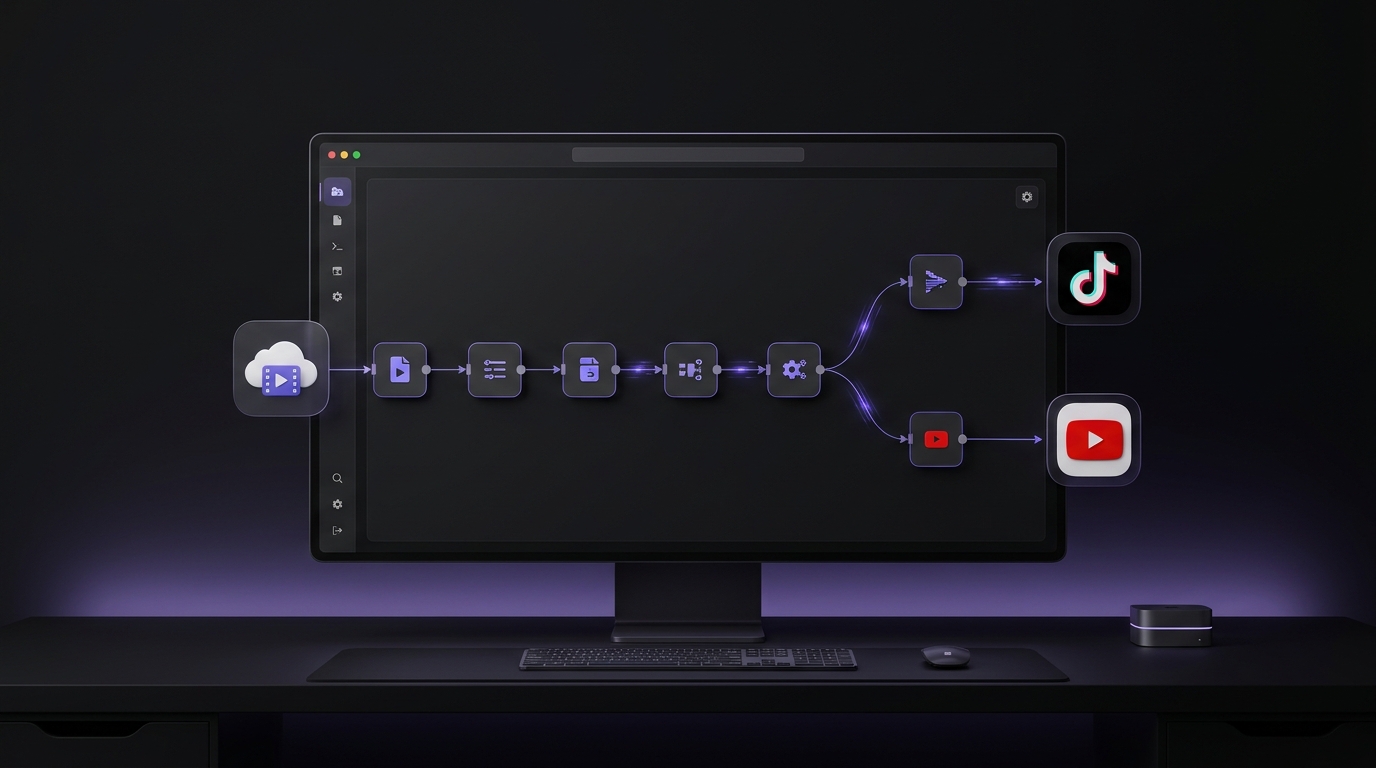
In this tutorial, I’ll show you an n8n workflow that connects Google Drive, Google Sheets, AI, Upload-Post, and Telegram to automate video publishing to TikTok, YouTube, and Facebook.
Watch the Full Video Tutorial
Watch the complete tutorial to see how the n8n workflow is built and how the different services work together.
Download the Ready-Made n8n Workflow
Want to use the workflow shown in the tutorial?
You can download the n8n workflow JSON file from Google Drive:
Download the n8n Social Media Automation Workflow
After downloading the JSON file, import it into your n8n instance.
You’ll need to configure your own credentials and service connections before running the workflow.
What Is n8n Social Media Automation?
n8n is a workflow automation platform that connects different applications and services.
In this project, n8n manages a video-publishing workflow using:
- Google Drive: Stores videos before publishing.
- Google Sheets: Tracks video information and publishing status.
- AI: Generates descriptions for the publishing process.
- Upload-Post: Sends videos to the selected social media platforms.
- Telegram: Sends notifications about the process.
The provided workflow includes publishing routes for TikTok, YouTube, and Facebook.
How the n8n Video Publishing Workflow Works
1. Schedule Trigger
The workflow starts with a Schedule Trigger. It allows the automation to run according to a configured schedule instead of requiring you to start the process manually each time.
2. Search for Videos in Google Drive
The workflow searches for files inside a specific Google Drive folder.
When it finds files, it prepares them for the next steps and creates shareable links so the publishing service can access the videos.
3. Save Video Information in Google Sheets
The workflow adds information about each video to a Google Sheets spreadsheet.
This includes:
- Drive File ID
- Video Title
- Drive Link
- Platform
- Publishing Status
- Date Added
The workflow identifies the target platform from the video filename using a naming convention that expects the platform name inside parentheses.
4. Generate Descriptions with AI
The workflow uses AI agents to prepare descriptions for the publishing process.
The prompts are designed for the selected platform and target audience, including Darija or French where requested.
This helps reduce the time spent writing descriptions manually.
5. Publish Videos to TikTok, YouTube, and Facebook
After preparing the video information and description, n8n sends the publishing request through Upload-Post.
The provided workflow includes separate routes for:
- TikTok
- YouTube
Upload-Post acts as the publishing service connecting the workflow to these platforms.
6. Send Telegram Notifications and Update Google Sheets
After the publishing request, the workflow sends a Telegram notification.
It then updates the corresponding Google Sheets row with a success status and moves the video into the uploaded folder in Google Drive.
This helps organize the files and track the publishing process.
What You Need to Use This Workflow
To use the provided automation, you’ll need:
- An n8n instance.
- A Google Drive account.
- A Google Sheets spreadsheet.
- An OpenAI API connection for the AI description agents.
- An Upload-Post account and API credentials.
- A Telegram bot for notifications.
You’ll need to configure your own credentials and service connections after importing the workflow.
Important Notes Before Running the Workflow
Before using the automation, keep these points in mind:
- Configure the Schedule Trigger according to your needs.
- Check your video filenames because the workflow uses them to identify the target platform.
- Review the sharing permissions applied to your Google Drive videos.
- Make sure your Upload-Post account and social media connections are configured correctly.
- Test the workflow with your own accounts before relying on it for regular publishing.
Platform note: The provided workflow JSON includes routes for TikTok, YouTube, and Facebook. Instagram is not included in this version.
Final Thoughts
Using n8n for social media automation can help content creators reduce repetitive publishing tasks and organize their video distribution process.
By connecting Google Drive, Google Sheets, AI, Upload-Post, and Telegram, this workflow brings video organization, description generation, publishing requests, and status tracking together in one place.
Watch the tutorial, download the workflow, configure your own credentials, and test it in your n8n instance.
Ready to automate your video publishing process?
Start with the tutorial and download the workflow to explore how n8n can simplify your social media publishing.
Leave a Reply